
Vibecode Your Own Odoo Apps
This guide describes a practical approach to automatically install the Claude AI extension for VS Code (or any IDE extension) within CICDOO's disposable containerized Odoo development environments. It addresses the specific challenge of preserving IDE customizations when runtime containers are rebuilt from a clean state.
The Problem
CICDOO deployments use disposable Docker runtime containers to maintain a clean, reproducible state for each Odoo instance. While this guarantees consistency for the Odoo application itself, it creates a development friction: any IDE runtime preferences, including installed extensions, are lost upon container restart. Developers must manually reinstall their preferred extensions (e.g., Claude AI for VS Code) every time the instance is recycled, impeding workflow and "vibecoding" sessions.
The Solution
Our platform allows you to specify IDE extensions that should be automatically provisioned inside the web-based IDE (code-server / VS Code) each time the Odoo instance starts. By declaring the Claude extension ID in the project settings, the extension becomes part of the disposable environment's baseline configuration.
Required Extension Identifier
Add the following VS Code extension identifier to your project's IDE extensions configuration:
anthropic.claude-code
Or if using the alternative OpenAI Codex extension for VS Code:
openai.chatgpt
After adding this identifier, restart the Odoo instance. On every subsequent start (including fresh container deployments), the Claude extension will be automatically fetched from the Open VSX registry and installed into the IDE.
Step-by-Step Technical Procedure
Our platform lets developers declare extra IDE extensions per project through a dedicated configuration field in the Advanced tab:
-
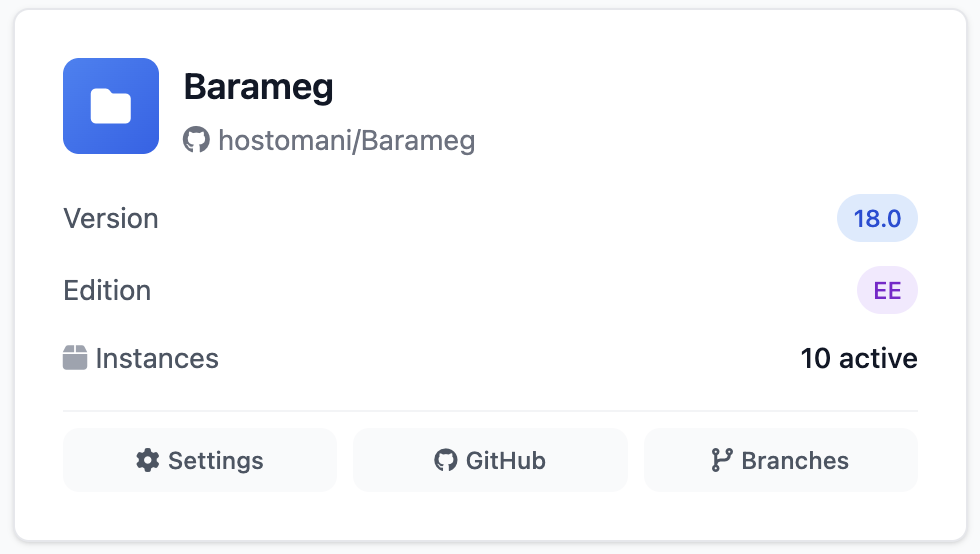
From your CICDOO project dashboard, open Project Settings
-
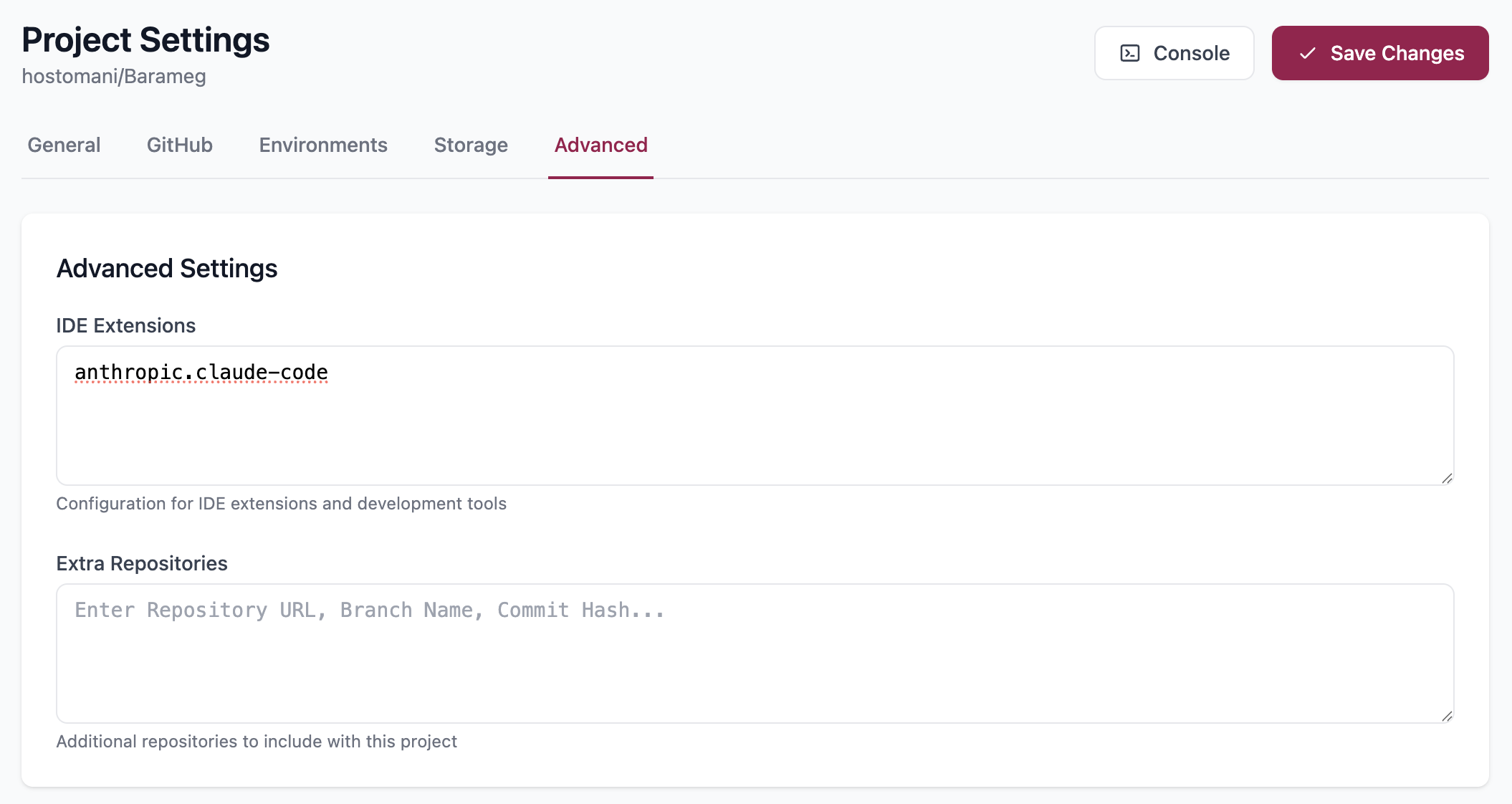
Navigate to the Advanced tab
-
Locate the IDE Extensions field (accepts a comma-separated or line-separated list of extension IDs)
-
Add the Claude extension identifier:
Claude.claude-dev
- (Optional) Add any other preferred extensions, e.g.:
ms-python.python - Save the settings and restart the instance to trigger the extension installation
Accessing the Provisioned Environment
Once the instance restarts:
- Go to the Instance Access tab in your project dashboard
- Click the Open IDE link – this launches the browser-based VS Code environment attached to your Odoo container
- Verify Claude extension availability:
-
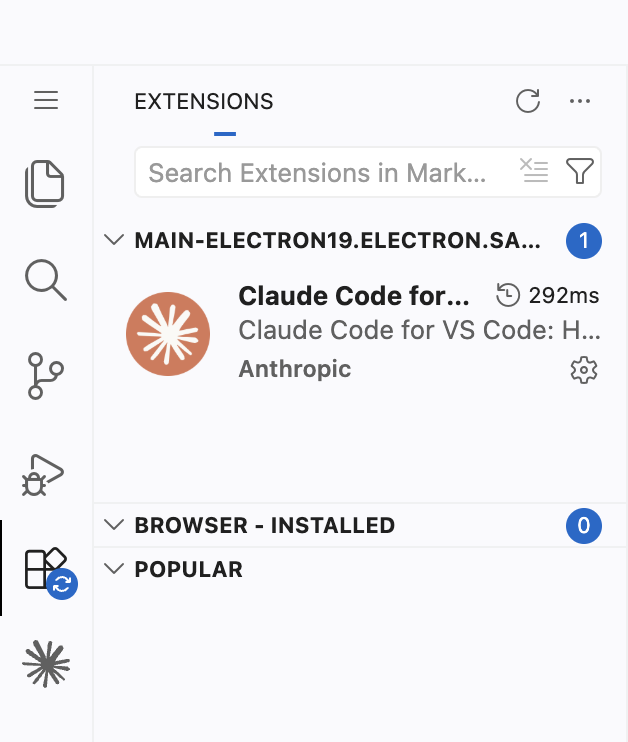
Open the Extensions panel (
Ctrl+Shift+X) -
Search for "@installed Claude"
-
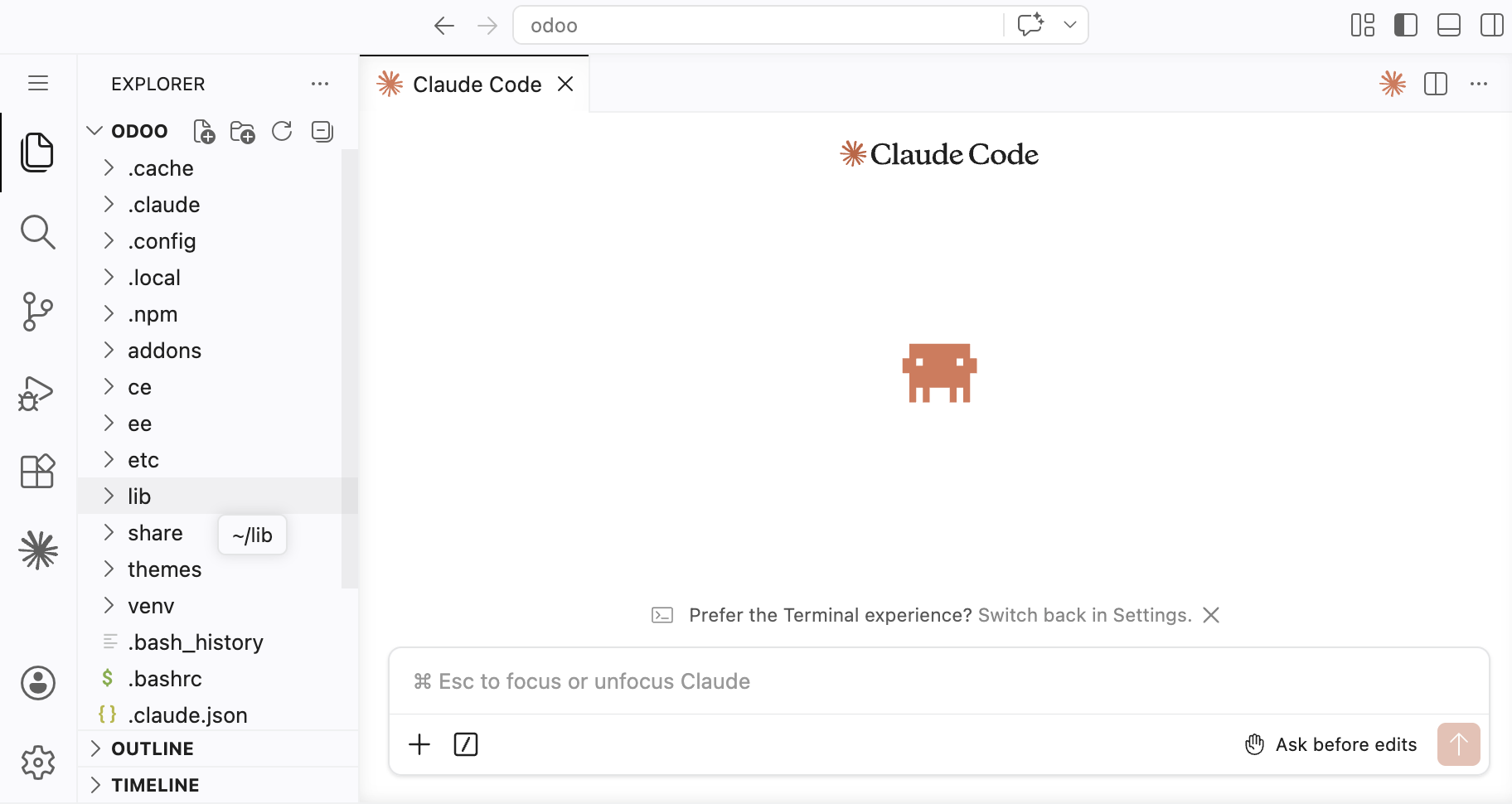
The Claude icon should appear in the activity bar (typically a chat bubble or Claude logo)
-
Authenticate with your Anthropic API key when prompted (this credential is not persisted across container resets – configure via environment variables for automation)
Key Technical Notes
- Installation Mechanism: On each container start, a bootstrap script runs
code-server --install-extension <extension-id>for each declared ID. Extensions are fetched from the Open VSX registry (default) or VS Code Marketplace if configured. - Persistence Boundary: The extension binary itself is installed into a writeable layer that survives instance restarts only if the container is not fully recreated. For truly disposable deployments (e.g., after a base image update), the extension must be re-downloaded – which this automation handles automatically.
- API Key Management: The Claude extension requires an API key. To avoid re-entering it on every restart, set the environment variable
ANTHROPIC_API_KEYin your Odoo container configuration (Project Settings → Environment Variables). The extension respects this variable automatically. - Performance Impact: Adding many extensions may increase instance startup time by 5-15 seconds as each extension is downloaded and installed.
Verification Example
After following the steps above, you can programmatically verify the installation by accessing the IDE's internal API:
# From within the running container's terminal (available in the IDE)
code-server --list-extensions | grep claude
Summary
By leveraging the IDE Extensions configuration field in CICDOO's Advanced project settings instead of manual post-start installation, you can successfully persist the Claude AI extension across disposable Odoo runtime containers. This method requires only a single extension identifier, avoids custom Docker image rebuilding, and preserves your "vibecoding" workflow for Odoo module development without manual reinstallation friction.
Updated 6 months ago